
YOUR TRADE. YOUR WORKFLOW.
Carpet-cleaning scheduling software for a clearer working day.
Keep carpet and upholstery appointments connected to their customer, work description and paperwork. Use month, week or agenda views to see what is booked and open the relevant job.
Try free for 30 daysNo card required. No automatic charge. Check current plans at signup.
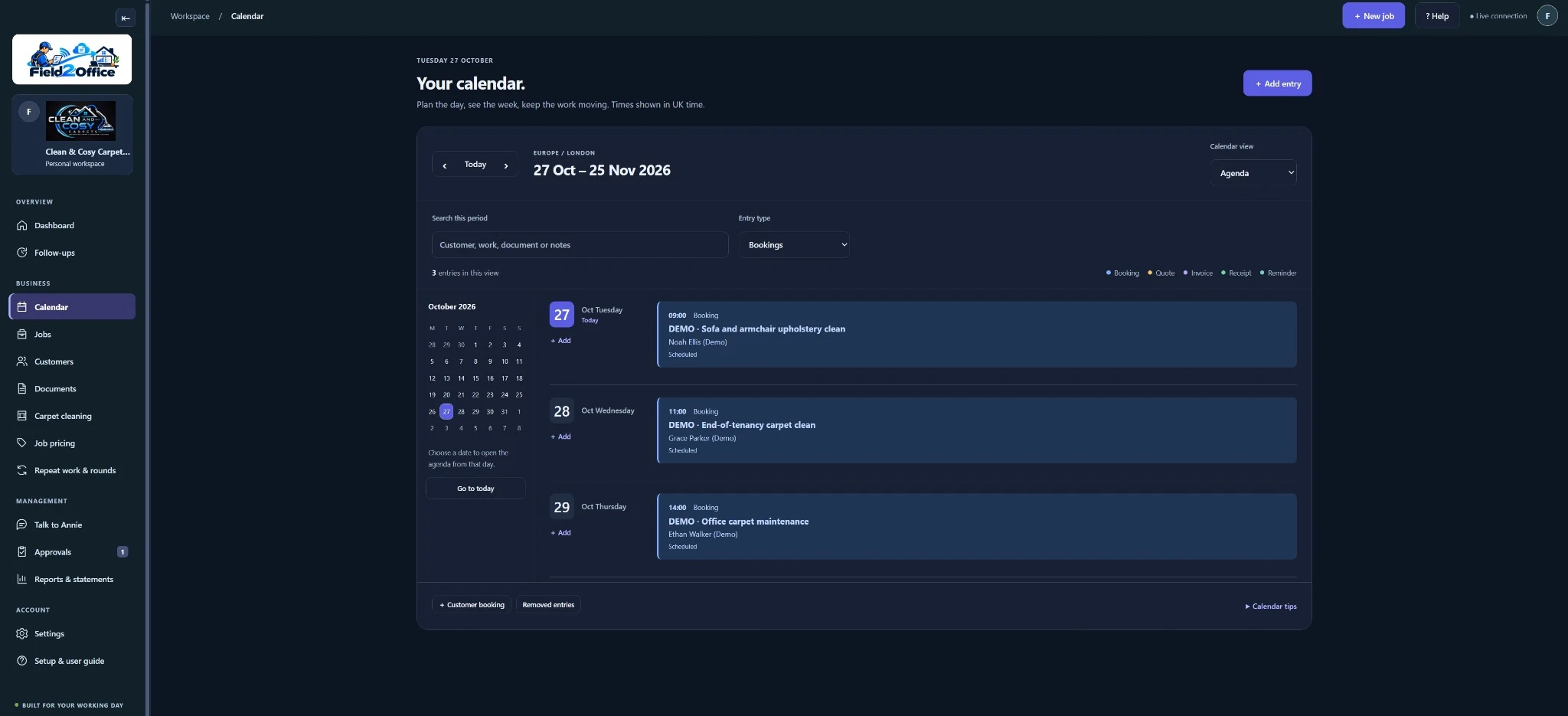
Genuine product screenshot. Demonstration records and amounts.
Move from an enquiry to an agreed appointment.
Capture who needs the work, the property address and what needs cleaning. You can save an enquiry without inventing an appointment time, then add the agreed date and time when the customer confirms. Booking can happen before or after quoting; not every cleaning job needs the same sequence.
Before committing to a visit, allow for travel, access, setup and the actual work involved. The calendar is a planning tool, not automatic route optimisation or a guarantee that you can fit another job into the day.
Choose the calendar view that fits the screen.
Month view gives an overview, week view helps organise upcoming work and agenda view presents a readable appointment list on a phone. Mobile starts in Agenda. Expand Search & filter when you need it and change the displayed period if a booking is outside the current dates.
Calendar entries can include bookings, document dates and reminders. Removing a calendar entry is different from deleting its underlying job or document. Reschedule the job when changing the actual appointment rather than moving unrelated paperwork dates.
Keep notes and photos with the visit.
Open the job workspace to find the customer and work details, then use Job details & other actions for rescheduling and status updates. Add inspection notes and job photos from your gallery or camera. Saved information belongs to the same business workspace on phone and PC while online.
- Check today’s jobs and the appointment details.
- Open the job before the visit.
- Save useful work notes and photos.
- Update the job status after the work.
- Continue to its quote, invoice or payment step.
Marking a clean completed does not automatically invoice or record payment. Those financial actions remain explicit.
Google Calendar is a reviewed connection.
Connect your work Google account through Settings, then open the job’s Google Calendar action to review its time and duration. Confirm before creating or updating the external booking. The connected primary calendar is checked for overlaps; you still need to assess travel and other commitments.
Changes made in Google are not imported into Field2Office. After rescheduling a job, review its Google booking separately. This is not a public customer self-booking system, live GPS dispatch or automatic two-way calendar synchronisation.
Questions about scheduling.
Can I manage bookings on a phone?
Yes. Use the mobile browser or Android2.0.0 app with the same workspace account. Internet access is needed to save and synchronise work.
Do customers book themselves into the calendar?
No public self-booking flow is included in the workflow described here. You capture the enquiry and confirm the booking.
Where do I prepare the quote?
Open the customer’s job and follow Next step. Read about room-by-room quoting or follow the complete guide.
Try it with your next job.
Choose your trade and plan, activate your workspace by email, and use the setup guide to add your business details.
Start your free trial